Help & guide
Everything you need to run your store. Version 3.1.0.
Quick start
Upload the zip to your hosting, open the site address and the setup page appears. Enter the database details from your hosting panel, click Test connection, choose a store name and create the super admin account. Tick Install sample data to fill the store with 50 demo apps so you can explore every feature right away.
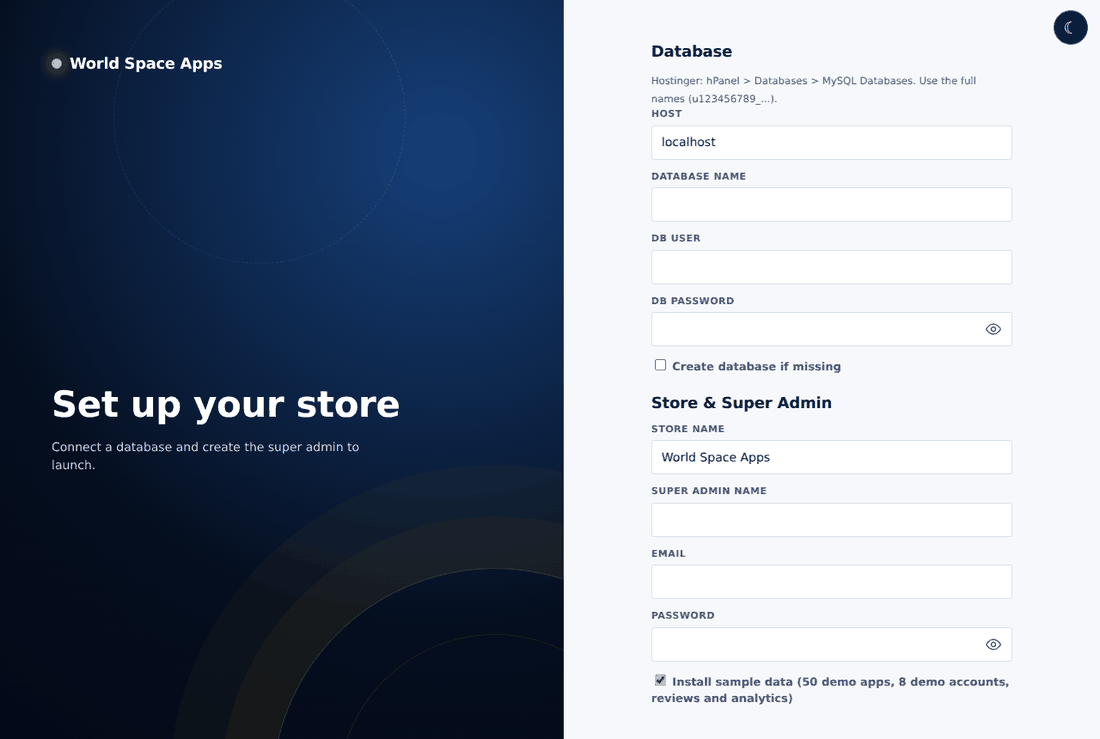
- Create a MySQL database and user in your hosting panel (Hostinger: Databases → MySQL Databases).
- Use the full names, for example
u123456789_store. - Click Test connection, then Install store.
- Sign in with the super admin account you just created.
The store (home page)
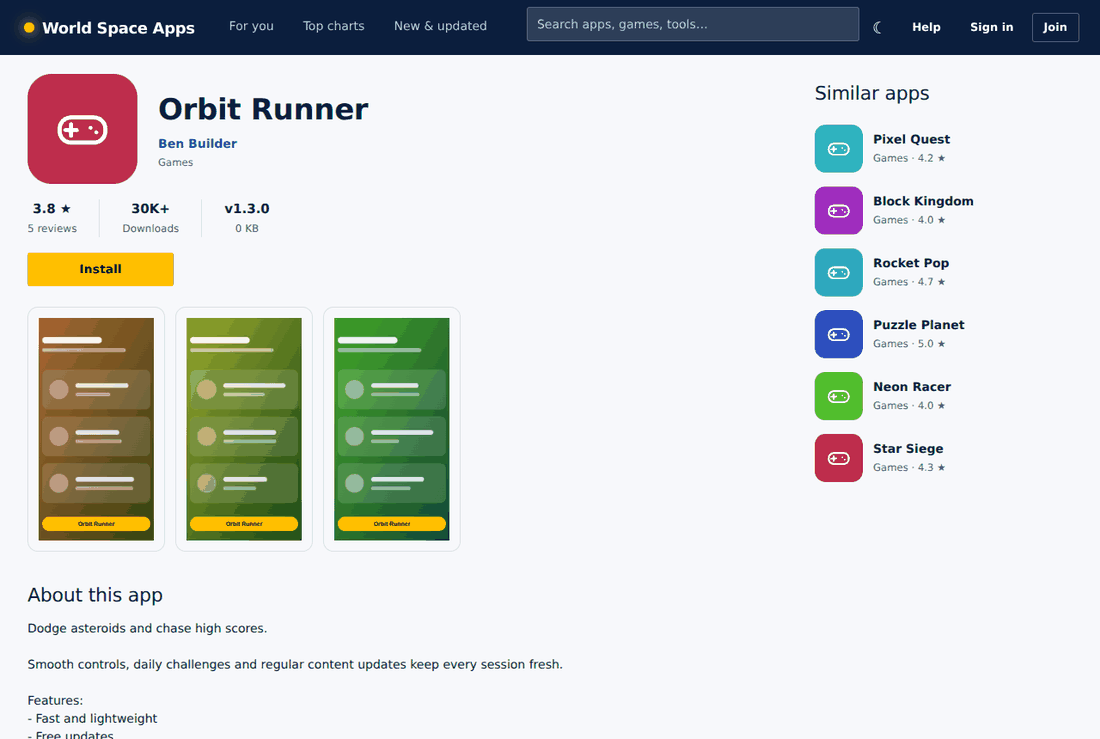
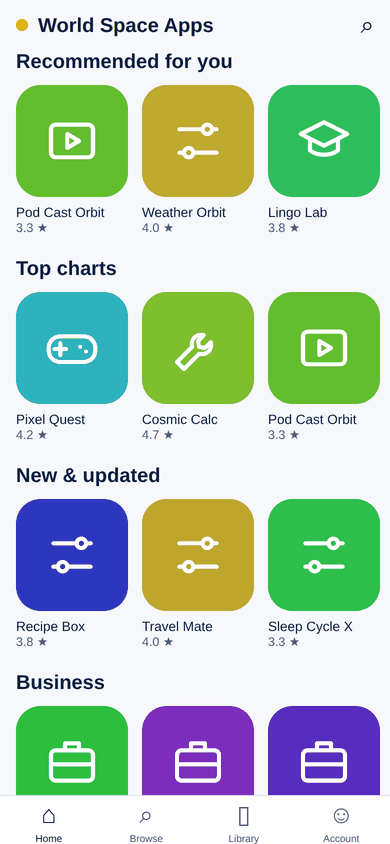
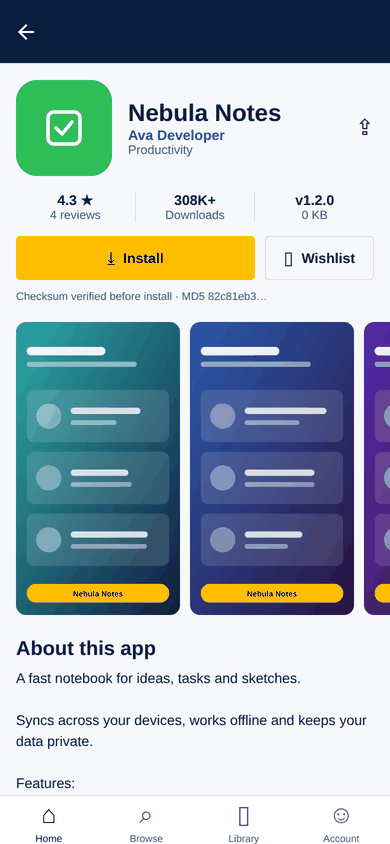
The home page is the landing page: search, quick links, live counters, browse-by-category tiles, device and category filters and rows of apps. Click any app for its detail page with screenshots, version history, ratings, reviews, similar apps, a report button and Install / Open buttons.

Users, roles & permissions
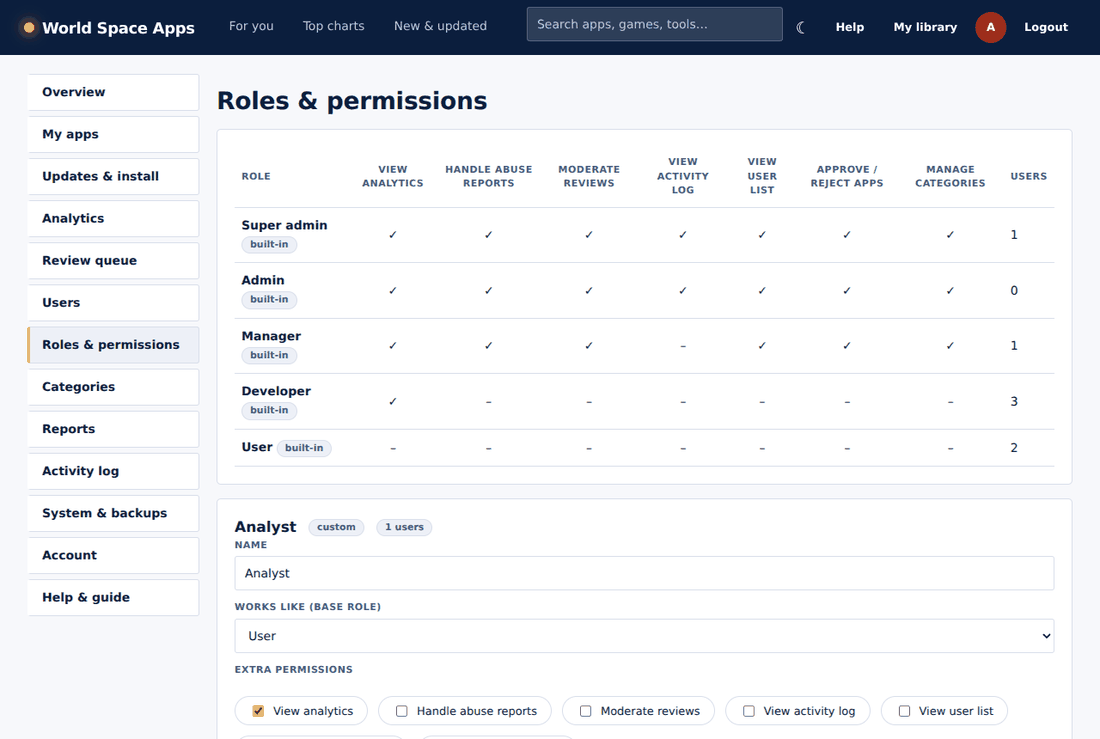
Accounts have a role. Built-in roles are User, Developer, Manager, Admin and Super admin. The super admin can also create custom roles (for example Support or Analyst) with exactly the permissions they need on the Roles & permissions page.
| Permission | User | Developer | Manager | Admin | Super admin |
|---|---|---|---|---|---|
| View analytics | – | ✓ | ✓ | ✓ | ✓ |
| Handle abuse reports | – | – | ✓ | ✓ | ✓ |
| Moderate reviews | – | – | ✓ | ✓ | ✓ |
| View activity log | – | – | – | ✓ | ✓ |
| View user list | – | – | ✓ | ✓ | ✓ |
| Approve / reject apps | – | – | ✓ | ✓ | ✓ |
| Manage categories | – | – | ✓ | ✓ | ✓ |
| Publish & update own apps | – | ✓ | – | ✓ | ✓ |
| Install apps live on the server | – | if enabled | – | ✓ | ✓ |
| Manage users & roles | – | – | – | ✓ (not admins) | ✓ |
| System settings, backups, platform updates | – | – | – | – | ✓ |
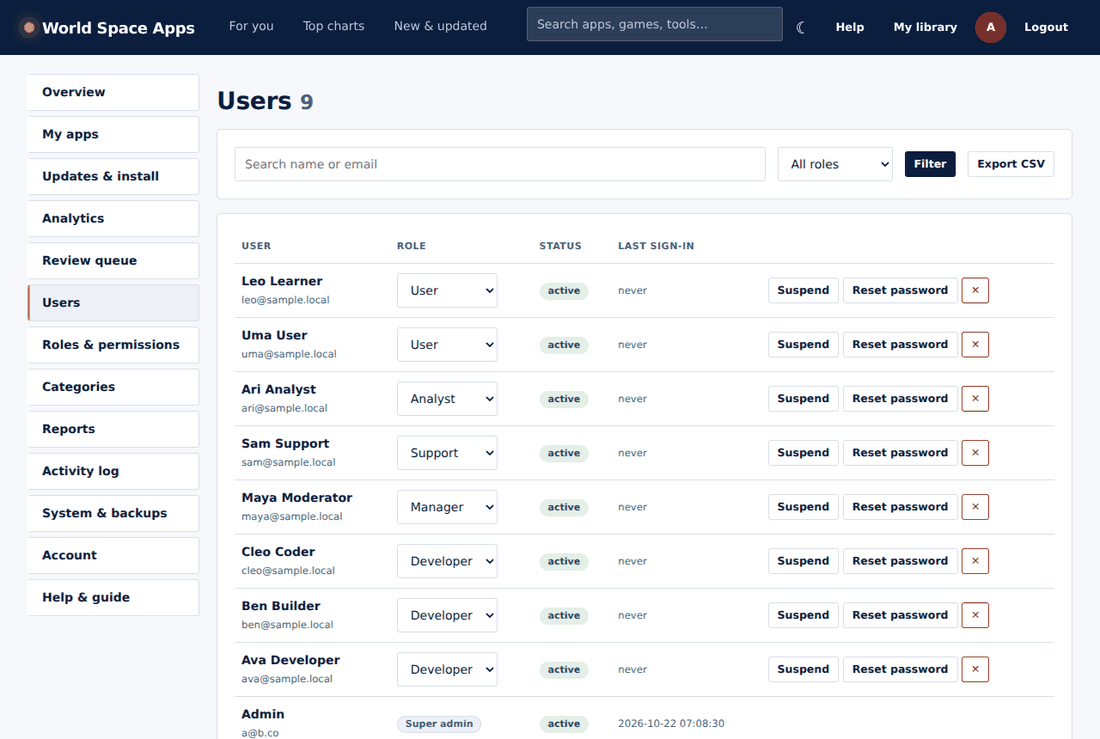
On the Users page admins can search, change roles, suspend or re-activate accounts, reset a password (a temporary one is shown once) and export users to CSV. Suspended accounts cannot sign in on the web or in the mobile app.
Publishing an app
Developers open My apps, fill the form (name, category, descriptions, icon, screenshots, supported devices) and upload a package. Large files are uploaded in small pieces automatically, so server upload limits do not matter. New apps from developers wait in the Review queue until a manager approves them.

Versions, updates & rollback
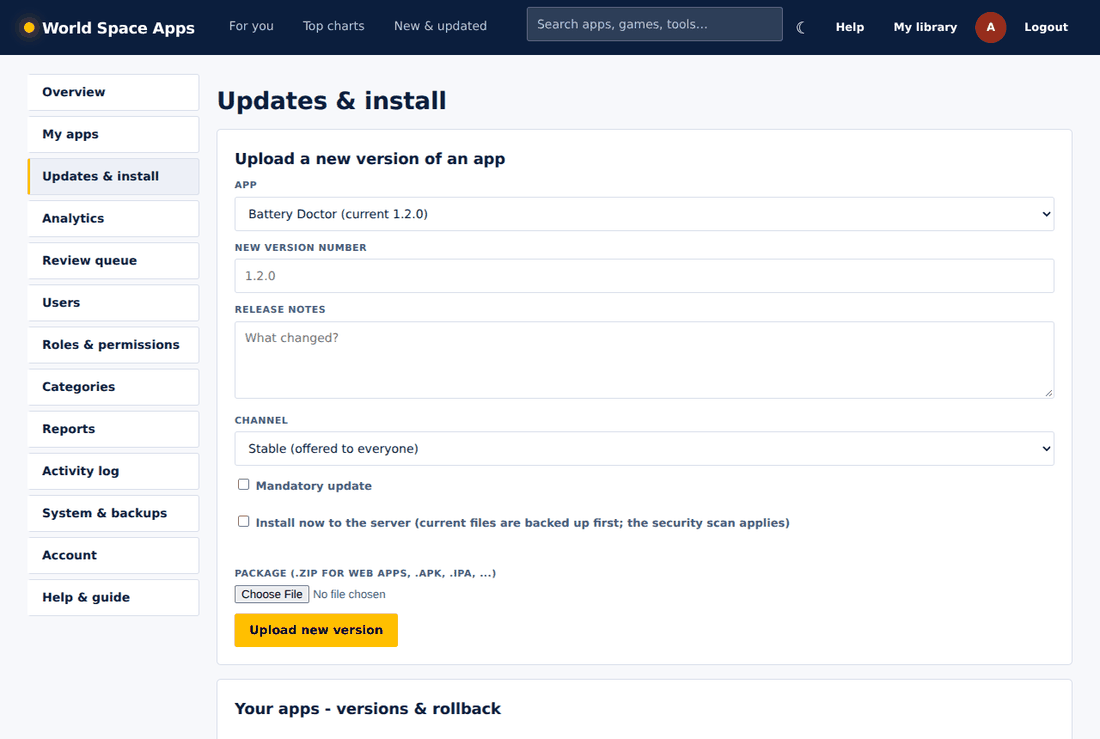
Every upload becomes a version with release notes, size and MD5 / SHA-256 checksums. Use Updates & install to upload a new version of any of your apps in one step:
- Pick the app, enter the new version number and release notes.
- Choose Stable (offered to everyone) or Beta (testers only) and tick Mandatory if users must update.
- Upload the zip. Tick Install now to also deploy it to the server (admins).
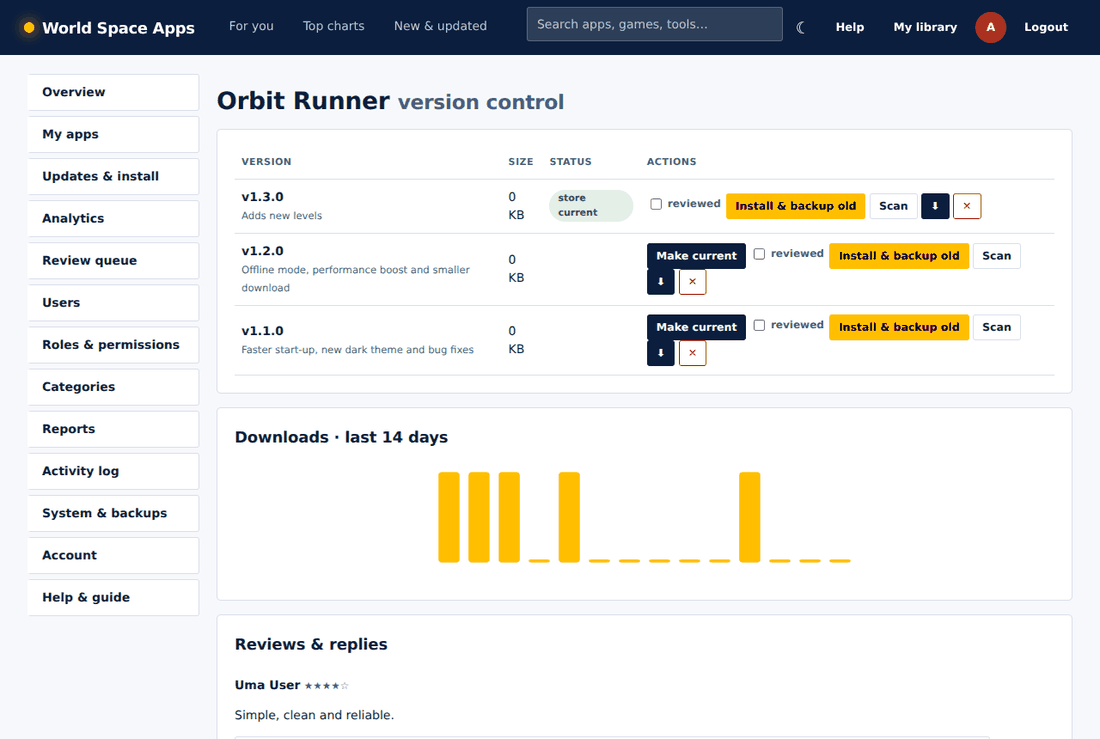
Installing over a live app first backs up the old files. On the app's version page you can Make current, Install & backup old, restore any backup, or roll back to an earlier version in one click.
Security scan
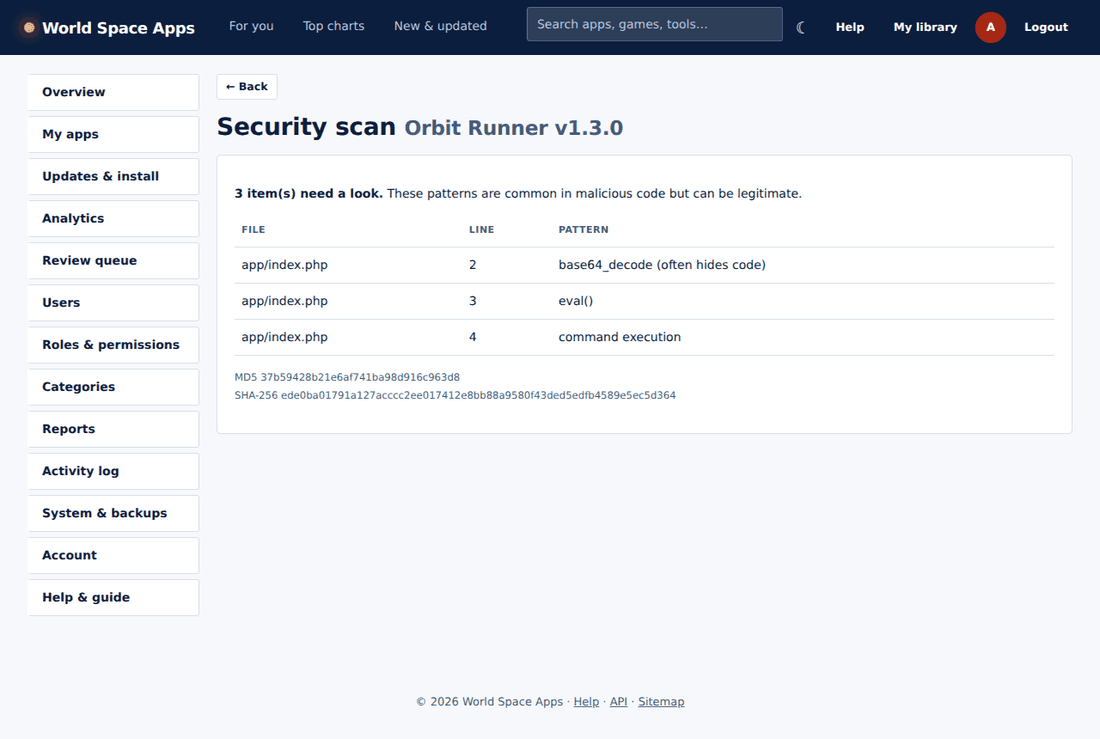
Zip packages are scanned for risky PHP patterns (eval, command execution, hidden code). If anything is found the admin must open Scan, review the items and tick reviewed before a live install is allowed. Developers cannot install live unless the super admin enables it.
Analytics
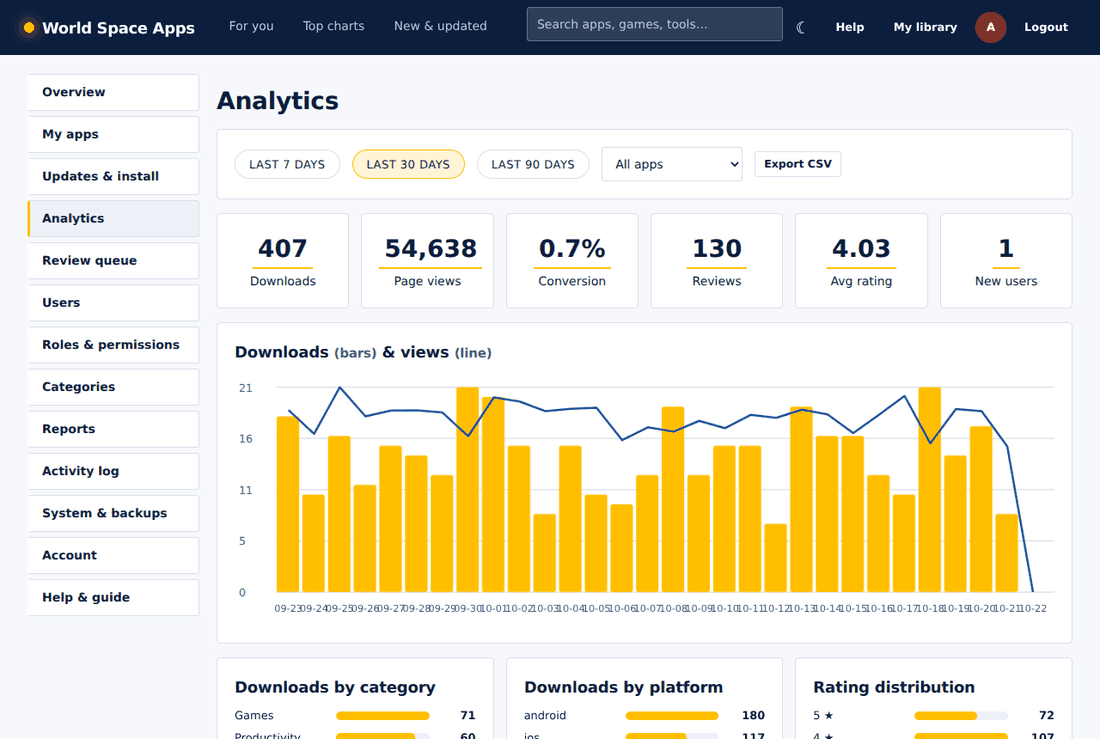
The Analytics page shows downloads, page views, conversion, new users, reviews and ratings for the last 7, 30 or 90 days, a daily chart, top apps, downloads by category and by platform, and rating distribution. Developers see their own apps; managers and admins see everything. Use Export CSV for spreadsheets.
Updating the store itself
The super admin can update the whole store from Updates & install → Update this store: upload the new release zip. The updater checks the file (including a PHP syntax check), saves a backup of the current files, applies the update and upgrades the database automatically. Your config, uploads, apps and data are never touched. Every platform version is kept as a backup you can roll back to with one click.
System settings
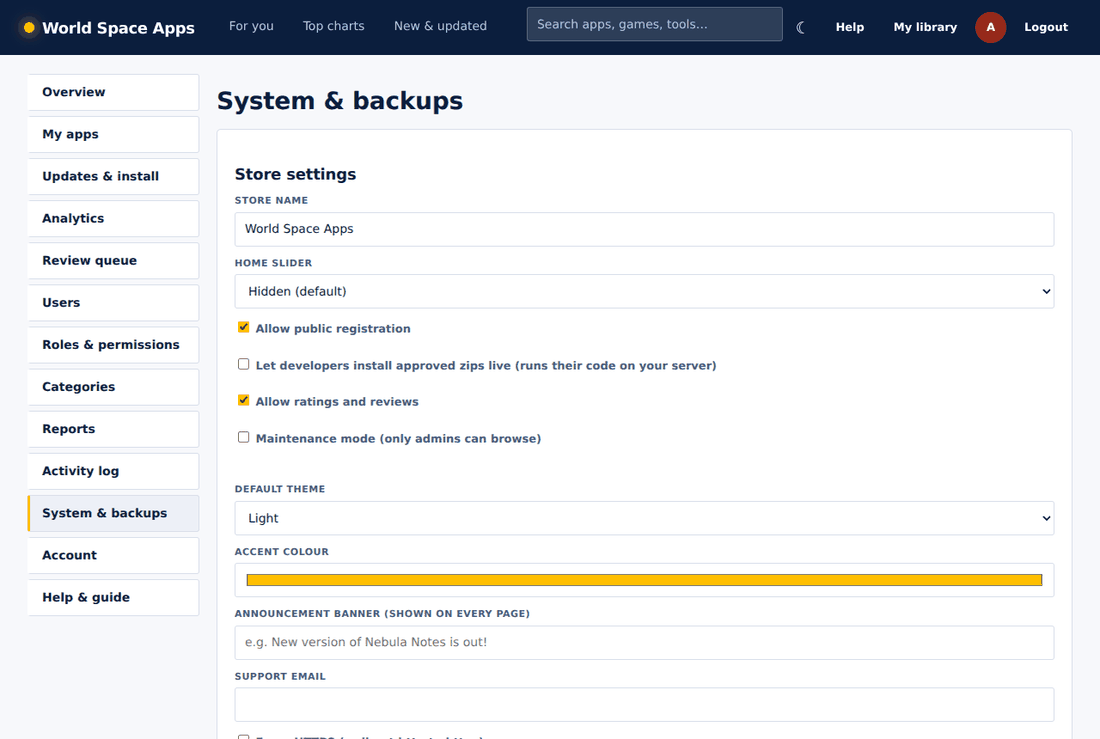
Store name, accent colour, default theme (light by default), announcement banner, home slider (hidden, cards or big preview), registration, reviews, maintenance mode, force HTTPS, largest package, developer installs and the sample data tools live on System & backups. You can also download a full database backup there.
Mobile app & API
The Expo / React Native app connects to your store with your store address. It supports browsing, search, installs (APK with checksum verification), web apps, wishlist, reviews, update checks, push notifications, beta channel, offline cache and a developer tab. The JSON API is documented in README.txt (?p=api&r=...).
Troubleshooting
Setup says "Access denied" / error 1045
The database username or password is wrong. Use the full prefixed names from your hosting panel and make sure the user is added to the database.
Upload fails or is too large
Enable JavaScript (chunked upload) and check the largest package setting on the System page.
The mobile app cannot connect
Use the full address with https://. Plain http only works for testing builds.
Push notifications do not arrive
They need a real phone, notification permission and an EAS project id in the app configuration. The server needs outgoing HTTPS access.
I updated and something broke
Super admin: Updates & install → platform backups → Restore the previous version.